Insights
What is Markdown? A 5-Minute Quick Start Guide
Published December 12, 2025Updated December 13, 20255 min read
#Markdown#Markdown Tutorial#Markdown Basics#Writing Tools#doc2markdown
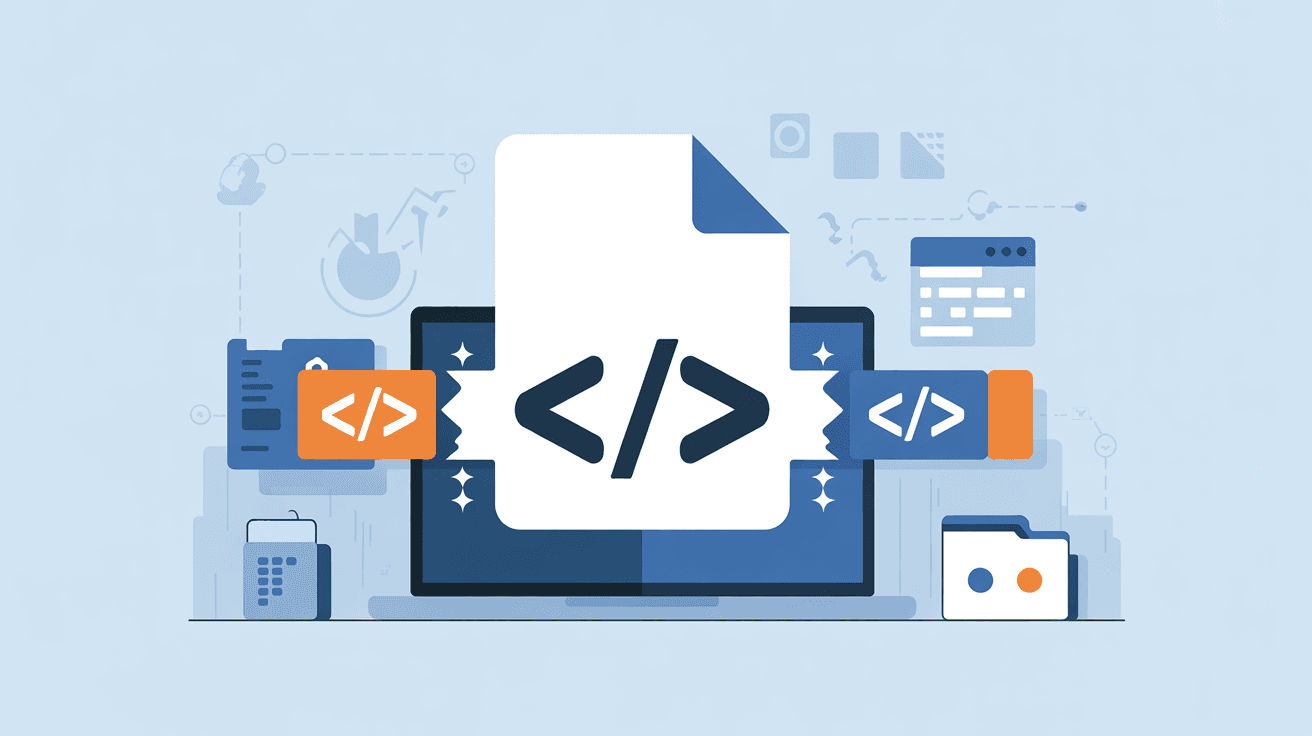
Honestly, when I first encountered Markdown, I thought it was a hassle—why not just use Word? Then one day I wrote technical documentation in Word, copied and pasted some content, and the formatting went completely haywire. I spent ages fixing alignment and gave up on the spot.
Then I tried Markdown. Game changer. Just type, don't worry about formatting, files are tiny and stable. Now all my blogs, docs, and notes are in Markdown. Never looked back.
Markdown is a plain text format that uses simple symbols for formatting. Use # for headings, ** for bold.
# This is a heading
## This is a subheading

**This text is bold**
*This text is italic*
Various tools (editors, blog platforms, GitHub) automatically render it into nice formatting.
The key is: you're writing plain text. Unlike Word's .docx files, Markdown .md files can be opened with Notepad and will never have "formatting corruption" issues.
Word isn't bad—it's just wrong for certain scenarios.
My pain points with Word for technical docs:
Markdown solves these:
# Heading 1
## Heading 2
### Heading 3
Number of # determines heading level. Most articles use H2 and H3.
**bold text**
*italic text*
***bold and italic***
- Item one
- Item two
- Item three

1. First step
2. Second step
3. Third step
Unordered lists use -, ordered lists use numbers.
[Link text](https://example.com)

Inline code: `code`
Code block:
```python
print("Hello World")
```
> This is a quote
> Can span multiple lines
That's the basics—enough for 80% of scenarios.
Let me share how I use Markdown daily:
Blogging: Write in Markdown, deploy with Hugo, git push and done.
Technical docs: All Markdown on GitHub, changes are trackable.
Notes: Use Obsidian, all files are .md, fully searchable.
Quick drafts: Use doc2markdown.com to convert when needed.
Q: Do I need special software?
No. Any text editor works (Notepad, VS Code, Sublime). Specialized editors like Typora and Obsidian show real-time preview.
Q: Can I convert Word docs to Markdown?
Yes. Use doc2markdown.com for quick conversion, handles formatting and images.
Q: Is complicated formatting possible?
Basic formatting is easy. For advanced stuff (tables, footnotes, diagrams), there's extended syntax. Precision layout still needs Word or design tools.
Markdown isn't meant to replace Word—they serve different purposes.
Markdown excels at:
Word is better for:
Spend 5 minutes learning, benefit for years. Seriously, anyone who writes regularly should learn it. Open a text editor and try it.