Practical guide · synthetic examples
Paste a screenshot and check its Markdown result
A clean screenshot example and practical checks for AI text and table recognition.
A screenshot can be faster to capture than a file is to export. The image tool turns printed text and simple tables into editable Markdown. Handwritten notes have a separate handwriting workflow; this example focuses on a clean screenshot.
Try a clear screenshot
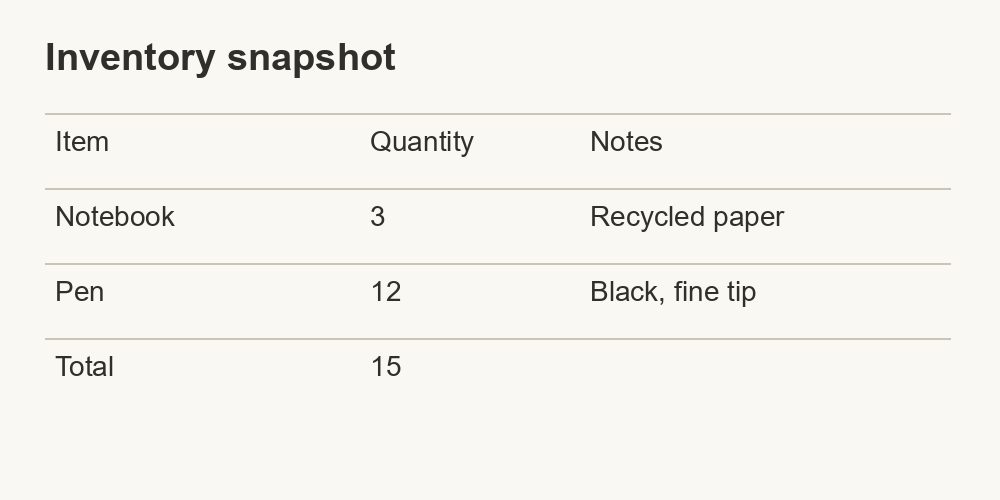
Download screenshot.png. It shows an Inventory snapshot with Item, Quantity and Notes columns. The image is generated from the same synthetic data as the spreadsheet guide.
- Open Image and screenshot to Markdown. Sign in before recognition.
- Open the sample image and copy the image itself. On the converter page, focus the upload area and press Ctrl+V or ⌘V. You can also drop or choose the PNG file.
- Choose Markdown output before selecting or pasting the image. Recognition starts after a valid image is selected.
- Wait for the final result. Compare the numbers and column boundaries with the source before copying or downloading.
The source has this content:
Inventory snapshot
Item       Quantity  Notes
Notebook   3         Recycled paper
Pen        12        Black, fine tip
Total      15
This is a source transcription for checking your result, not a promise that every model returns identical Markdown. The AI model, image quality and document layout can change the output. The sample should help you spot a missing row or a number read incorrectly.
Make the image easier to read
Crop out browser controls and unrelated content. Keep the complete table header and enough margin to show which cells belong together. Use a sharp image rather than repeatedly recompressing a photograph. Rotate sideways pages before uploading.
Paste accepts one JPG, PNG or WebP image up to 10 MB. Copying a file path or the text of an image URL is different from copying image data; use the file picker if the clipboard does not contain an image. On mobile, choose a photo or screenshot through the file picker.
Finish and check
Pasting while typing in an input or editor keeps normal text editing behavior. A running conversion also keeps its original image instead of accepting a new paste. For a second image, wait for the result and use the new-upload action.
Review identifiers, dates, decimals and similar-looking characters such as O/0 or I/1. A table may need manual cleanup. The result download gives you text; the ZIP option includes any extracted assets belonging to that task, not arbitrary remote images.